Monday, October 24, 2016

Word Features

New or reacquaint

2007 came up with a number of new and improved features. Most are the same in 2010-13.
Here's a description of some built in tools.

Beyond the Ribbon


See all Topics

Monday, October 17, 2016

Custom QAT

Access additions


Applications put most of the most-used commands on the Home tab's Ribbon, not everything is there. You may want to add Close, Close All, or Print commands, for example.

In the upper Left corner is the Quick Access Tool bar.

To update the QAT:
Click the down-pointing arrow to the right of the QAT.
Choose any common commands (New, Close, Print, etc.) by checking the option.


See all Topics

Tuesday, October 11, 2016

Merge Formatting Extended

Manipulation

When you merge data into Word, it takes on the formatting of the target document.
This tip allows you the dictate the appearance of merged data.


WordRibbon.Tips.Net


See all Topics

Thursday, October 06, 2016

Command Reference

2003-2007-2010-2016

Those of you that are just now making the switch to the Ribbon world, will find this valuable.

ComputerWorld.com


See all Topics

Tuesday, October 04, 2016

Tips for Office

Suggestions

TechRepublic lists a number of areas that you might explore when training is needed for a new Office version.

Here are a few:
  • LINKS TO TIP SHEETS AND ARTICLES
    "Instead of telling your users to go out to Microsoft.com and do a search, put hyperlinks to the printer-friendly version of tip sheets and articles on your company's main portal page. Providing links to information you know they need will help you cover the training bases. And presenting the links on an internal web site they already use will show your users that it's okay to go outside of their four firewalls to learn something new. Include your favorite hyperlink in your signature line so it goes out in every e-mail you send."
  • ONLINE TRAINING
  • E-LEARNING
  • WEBCASTS
  • VIRTUAL TRAINING
  • MULTILINGUAL SCREENTIPS AND TRANSLATIONS
  • COMMAND REFERENCE GUIDES
  • OFFICE ONLINE AT WORK
10 ways to train your users on Office for free


See all Topics

Wednesday, September 28, 2016

Where's the Template?

Find and/change storage spots


Describes the different template categories and the locations of templates in 2007 & 2010 Office programs. Also describes the registry settings that control where to find your custom templates.

Support.Microsoft.com


See all Topics

Tuesday, September 27, 2016

Character Codes

HTML and ALT+


Here's another table with the codes needed to insert characters that do not appear on the keyboard:

Keyboard Shortcuts


See all Topics

Monday, September 19, 2016

Merge to PDF

Not just MailMerge anymore

Sure, you can create a merged letter and have 30 pages of individualized information.
What now? How do you create separately named documents to, maybe, send as attachments?
Another task might be to convert those 30 docs to PDF. Oh, the hours wasted!

Graham Mayor, a retired newsgroup junkie, offers a solution.
It's a macro that will convert the merged output as individually named doc(x), and/or PDF files.
I've used it, and now wonder what I can do with the time I'm saving.


GMayor.com


See all Topics

Tuesday, September 13, 2016

Merge Access with Word

Database integration


"You can merge Microsoft Office Access 2007+ data with a Word 2007+ document by using the Mail Merge Wizard. This demo shows you how to create a simple form letter and how to troubleshoot problems. You can also use this feature to create address labels or any other type of Word document in which you want to display Access data."
MailMerge Access-Word


See all Topics

Thursday, September 08, 2016

Typography and Word

Shape and display

Here are some suggestions about how to make your text easier to read.

"Ever wonder why some text seems easier to read than others? A few basic formatting changes can make reading text much easier. Factors like line spacing, font choice, font size and margins are key to legibility. "

Office.Microsoft.com


See all Topics

Monday, September 05, 2016

Keyboard and Key Tips

Finger it out


2007-13 apps look different because of the ribbon, but the keyboard can still be used to speed up tasks.
Microsoft has an online courses that may help

After completing this course you will be able to:
Accomplish tasks by using sequential shortcut keys, known as Key Tips, shown on the Ribbon.
Navigate around the Ribbon using the TAB key and arrow keys.
Accomplish tasks by using key combinations — keys you press at the same time - exactly as you've done in previous versions of Office.
Office.Microsoft.com/Training


See all Topics

Friday, September 02, 2016

Forms in Word

With and without code


Data entry forms can be designed and presented using VBA code. Another simpler way to do it is to construct a form directly in the Word document.
"Have you ever been asked to fill out a form in a word processor, only to discover that when you attempted to enter information, the lines on the form moved all over the page? Not to mention that the form was difficult and time-consuming to fill out? Most people don't realize that you can easily create professional-looking forms in Word."
  • Part I: Create professional looking forms in Word

  • Part II: Adding Automation to your Word forms

  • Part III: Learn more about VBA macros to automate your form

  • Part IV: Use custom dialog boxes in your Word forms

  • Part V: Linking your AutoForm to a database
Please Fill Out This Form!

By Dian Chapman at TechTrax

Also:

 Fun with Forms

Cindy Meister

Word on YouTube


See all Topics

Monday, August 22, 2016

Notes from Word

Import it all


One technique that can be used when preparing a PowerPoint show, is to import material from an existing Word Outline.

If the Word document is formatted with Heading styles, Heading 1 will become a new slide and the subsequent headings, 1 through 6 will become bullet points on the slide.

It may be desirable to prepare notes for each slide while developing the Word outline. Notes don't appear on the slide, they are placed on a separate page that can be printed out for the speaker or handed out to the audience.

Bill Dilworth has written a macro that moves information that has been formatted, say at Heading 6, and places it on the notes page:

"This macro outline allows the user to use Word's "Send To PowerPoint" feature, then run this macro to get notes from MS Word to PowerPoint as notes. The macro allows you to set the text level you want to become the notes."

Word Outline to Notes Page in PowerPoint


See all Topics

Thursday, August 18, 2016

Change Insert Picture Target

File location


If you would like to specify the folder Word will default to when you go to Inset>Picture:
  1. From the Tools menu, click Options.

  2. Select the File Locations tab.

  3. Select ClipArt Pictures from the File Types list.

  4. Click the Modify button.

  5. Navigate to the folder you want Word to default to.

  6. Click OK. OK.


In 2007-10, you'll find the entry by
  1. Click on the Office logo

  2. Go to Word Options>Advanced

  3. Scroll down to General

  4. Click the File Locations button


See all Topics

Saturday, August 13, 2016

Stencils are Digital Stencils

Make your own


If you have a document; such as a report or reoccurring newsletter, one way to reduce the production time is to create a template.

These preformatted, boiler plated documents can then be fleshed out without having to reinvent the sardine.

Here are some tutorials to help you along:

AddBalance.com
Template Basics

About.com
Word Templates


See all Topics

Friday, August 12, 2016

Sparklines

Quick graphic reinforcement


A graph or chart can give the reader a visual representation of a great deal of data. Concepts or results can be more easily grasped by a well formatted graphic.

Charts, usually, take up more space in a document than is absolutely required.

Edward Tufte has come up with the concept of Sparklines (Sparklines:Intense, Word-sized Graphics)
.
These are small graphs about the same height and width as common words. They are not out of place in the text of a document.

Sparklines give the reader a snapshot of the data that quickly supports the material being discussed.


See:
Sparklines Tutorial

Bisantz Sparklines


See all Topics

Wednesday, August 10, 2016

Hidden Macro Names and SHortcuts

Revealed


Word has built in macros to perform routine actions such as using the Format Painter to copy formatting.

Rather than trying to guess the name or look up the shortcut keys, use this seldom mentioned trick to find toolbar macro names.

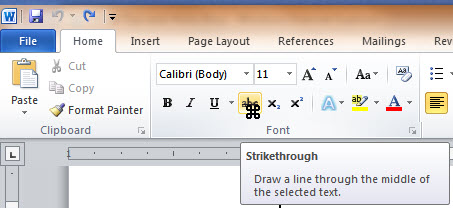
Press the three key combination of Ctrl, Alt, and + (the plus sign on the Numbers keypad).

The mouse pointer changes to a 4-leaf clover.

Click on a toolbar icon. Word will display a form revealing the macro name and the assigned shortcuts.


(It works the same way in 2007+)


See all Topics

Sunday, August 07, 2016

Password Background

Unencrypted

Alan Myrvold has written a background article on how Office handles passwords and what password strength means.

"Word, Excel, and PowerPoint have been able to password protect documents for several versions by setting the 'password to open'. What we felt could be improved was the ability to enforce password strength rules, similar to what may be required when logging into your computer at work."


Enabling password rules for Office 2010+


See all Topics

Thursday, August 04, 2016

REDUCE MISSPELLLINGS

You might be missing typos in tables

If you've ever found typos in a table or list that you're positive you remember spell checking, chances are that the typos are in words that are purposely skipped during the spell check.

By default, SpellChecker ignores words that are all upper-case or that have numbers in them. In most cases, this is probably fine. However, especially with purchased data, you'll occasionally come across tables where everything is capitalized.

Fortunately, you can change the way SpellChecker works so that all words are included.

To do so, run the SpellChecker on a data selection that will cause the Spelling dialog box to be displayed.

Then, click the Options button and clear the Words In UPPERCASE and Words With Numbers check boxes.

Finally, click OK and then Cancel.


See all Topics

Wednesday, August 03, 2016

Find the Word

And Replace


Word has one of the most complete and malleable Find/Replace systems of any application.
Here is a 26 page report on how to use it from Editorium.com.
While your there, sign up for the free newsletter.

Advanced Find and Replace for Microsoft Word

"One of Word's most powerful features, especially for editing, is Find and Replace using wildcards and character codes. This free tutorial (a Word document) will take you step by step through what you need to know. If you don't download anything else here, be sure to get this--and work your way through it. It's well worth the effort."


Editorium.com/Freebies


See all Topics