Thursday, November 30, 2017

Function Toolbar

F what?


In Word 2007+, you can see the shortcut keys by pressing the ALT key.

Word (2002-2003) has a rarely seen "toolbar" that lets you use your mouse to perform function key actions. In addition, when you press Shift you'll see what the Shift + function key combinations do, press Ctrl and you'll see those shortcuts, and so on.

The toolbar is automatically placed at the bottom of the screen (underneath the document area; right above the status bar); like any toolbar, you can drag it and dock to it any side of the screen, or let it float. To display the Function Key Display toolbar:

  1. Go to Tools>Customize.
  2. Select the Toolbars tab, then check Function Key Display
  3. Click the Close button.
Press the Ctrl, Alt, or Shift keys to see the toolbar buttons (shortcut hints) change. Click on the buttons and the appropriate action will be performed.

See:
Allen Wyatt's Word Tips


See all Topics

Friday, November 24, 2017

Foxy or Ipsum

=rand(p,s)


In Word 2007+, =rand() produces a selection from the Help file.

=lorem() displays:


Lorem ipsum dolor sit amet, consectetuer adipiscing elit. Maecenas porttitor congue massa. Fusce posuere, magna sed pulvinar ultricies, purus lectus malesuada libero, sit amet commodo magna eros quis urna.
Nunc viverra imperdiet enim. Fusce est. Vivamus a tellus.
Pellentesque habitant morbi tristique senectus et netus et malesuada fames ac turpis egestas. Proin pharetra nonummy pede. Mauris et orci.


If you want some history, try Lipsum.com


Pre 2007:

To insert practice text in the document, type:
=rand()
and hit the ENTER key.

The whole equation would be:
=rand(p,s)
"p"is for p>aragraphs. "s" is for s>entences.

=rand(2,3)
would produce 2 paragraphs containing 3 sentences each.


It is said that:

The Italian edition of Microsoft Word 2000 produces:
"Cantami o Diva del pelide Achille l'ira funesta."

This is the first line of the Italian translation of Homer's Iliad.

In Spanish it's:
"El veloz murciélago hindú comía feliz cardillo y kiwi."

"The quick Hindu bat ate happy golden thistle and kiwi."

In French it's:
"Servez à ce monsieur une bière et des kiwis."

"Serve this gentleman a beer and some kiwis."

Other Panagrams

Choose Your Ipsum


See all Topics

Saturday, November 18, 2017

Task Panes

VBA at your own risk


From the MVPS.org site:

Word's Task Panes VBA Reference
The Mother of All Task Pane articles
By Steve Hudson

"Task Panes display within a Work Pane's area. A Work Pane is created by the combination of two objects. These objects are shrouded in misery and thwart most attempts to play with them. The whole area is hidden away from the Kill Cursor invoked with CTRL+ALT+-, which changes to a hand when waved over a Work Pane.
Functions are hidden away from the macro recorder. To make it easier, if it is not in this reference, it is hidden. It is like when a spy is caught and the government disavows all knowledge of their actions.
The Task Panes are spies from Microsoft that are known to only a few objects, in these versions of Office anyway.

Warning
The author gleefully notes at this point that the human race has enough intelligence to get itself into cauldrons of boiling water that it cannot climb out of and that means you and me both!
If you like to be ultra-safe, stay away from this reference and wait for MS to hand over full functionality. You will end up crashing Word many times and you can really damage your user interface."

(Ctrl+Alt+-, can be used to remove an item from a menu. Type the shortcut and then click on a menu item)


See all Topics

Tuesday, November 14, 2017

Some Issues in Word

A collection of hows


Here are a few:


See all Topics

Thursday, November 09, 2017

Compare — Combine

Changes in '07


For a number of reasons, including collaboration, documents need to be reconciled. A resultant or master document must be distilled from different versions.

Here are some directions:

Compare - Combine

Comparing and Combining Documents

Back in the old days of 2003, you could save "versions" of documents. That's gone:
Bye-Bye Versions


See all Topics

Friday, October 27, 2017

Resume Writing

Get a Job


There are a number of templates installed in Word that will help in creating a good looking resume.
Get started on your job hunt with Word templates

Here are some suggestions about what a resume should look like:

About.com
Resume and Cover Letter Guide

The Riley Guide:
Prepare Your Resume for Emailing or Posting on the Internet


Want to work for Microsoft?

Microsoft's Zoe Goldring and Gretchen Ledgard:
What is it like to interview at Microsoft?

Chris Sells:
Interviewing at Microsoft

Blog:
Technical Careers@Microsoft


See all Topics

Thursday, October 26, 2017

Insert Line Breaks With Code

Label Captions


If you've ever needed to insert line breaks in a message box prompt, you most likely built a string that incorporated a line feed or carriage return character. Unfortunately, label objects aren't as forgiving when it comes to using these characters.

If you're setting a label's Caption property with code, you'll find that the special control characters are interpreted as squares, since they're otherwise un-displayable.
To successfully insert a line break in a label caption, you need to include both a line feed character and a carriage return character, entered consecutively.

To do so, you can use the Chr() function, such as:

Me.Label1.Caption = "Line 1" & _
Chr(13) & Chr(10) & "Line 2"

However, you can also simplify your code using an built-in constant:
Me.Label1.Caption = "Line 1" & vbCrLf & "Line 2"


See all Topics

Monday, October 23, 2017

Office Art

2007+ choices


Office 2007+ uses OfficeArt to format text boxes, graphics and pictures.

It's available in Word, Excel , and PowerPoint, but it is most active in PowerPoint and Excel.

Here's a description:

Office PPT Art


See all Topics

Sunday, October 22, 2017

Bad Typography

Ugly when you look close


"From the company that popularized Arial, here are three examples of bad typography in Microsoft Word.
Bad typesetting in Word finds its way into résumés, business plans, research papers, government documents, even published books.
These small inconsistencies and imperfections may be un-noticeable in small doses, but paragraph-after-paragraph they stack up-resulting in ugly, visually in-cohesive documents.
Word isn’t for professional typography work, but that's no excuse for these typography sins.

Arial:


Garamond


Here's one that shows it can be done right:

BatangChe


Examples of Bad Typography


See all Topics

Wednesday, October 18, 2017

Create a Template

More of a good thing


After putting together the ultimate proposal, or dunning notice, you can save the document as a template so that you don't have to re-invent the whole thing.

Here's how to do it in Word 2007-13.
(Earlier versions also use "Save As")


  1. Click the Microsoft Office Button , and then click Open.

  2. Open the document that you want.
    Make the changes that you want to appear in all new documents that you base on the template.

  3. Click the Microsoft Office Button , and then click Save As.

  4. In the Save As dialog box, click Templates if your computer is running Windows or Vista, or click Trusted Templates if your computer is running Windows XP.

  5. Give the new template a file name, select Word Template in the Save As type list, and then click Save.
Note You can also save the template as a Word Macro-Enabled Template (.dotm file) or a Word 97-2003 Template (.dot file).

Create a new template

Also:
Templates are digital stencils  


See all Topics

Tuesday, October 10, 2017

Use the Ruler

Measure by Measure


Here is an article that explores the use of Word's Rulers.

About the only thing I don't see is that you can bring up the Page Setup dialog box by double clicking in the dark area of the ruler that indicates the margin.

Once again this tip comes from the Microsoft Word MVP site:

Ruler of all you survey:
How to make the best use of Word's rulers

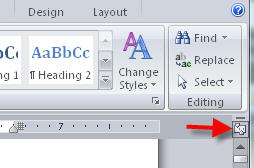
Here's the spot to click to show rulers in Word 2007-13:


See all Topics

Tuesday, October 03, 2017

Continued

More to come


You can place the word "More" or "Continued" at the bottom of every page except the last one.
The field, for those of you who know how to use them is:

{ IF { PAGE } = { NUMPAGES } "" "more" }

You can't just type in the brackets, you must use Insert>Field or Ctrl+F9.

Here is a more sophisticated formula:

{ IF { PAGE } < { NUMPAGES } "Continued on page {={PAGE} + 1}" "Last Page"}

Also see the Word MVP site:

How to control the page numbering in a Word document


See all Topics

Friday, September 29, 2017

And Then There Was Word

Remember the past


As one writer put it:
"Before the development of personal computers and word processing software, documents were produced on typewriters."

Chris Pratley, a Microsoft Program Manager, started with the Excel team in 1994 and then worked with the Word team. He has written about the early days:
Let's talk about Word


Also see:
WordStar Resource Site
(Includes a WordStar emulator for Word)


And:
In Search of Stupidity


See all Topics

Wednesday, September 13, 2017

5 Tips

A few useful ideas


"If you use Word in your daily work, a few simple tips will help you save an hour of your time per week, maybe more. Best of all, these tips are so easy to use that you can put them to work immediately upon finishing this article. Yes, they are that easy to use!"
  • Let Word type names and other words and phrases for you

  • Let Word insert your favorite text or graphics

  • Let Word type information about your documents

  • Let Word alphabetize lists for you

  • Change the way Word works
5 Time-Saving Tips


See all Topics

Monday, September 11, 2017

Keyboard Shortcuts

Extra pilcrows?


Here is a list of keyboard shortcuts I once or never knew.

The one that struck me was:

Ctrl Alt K — Remove extraneous paragraph marks.

This removes doubled pilcrows (¶¶).

Word-Tips


  • Alt F6 — Swap open documents
  • Alt Shift D — Insert date
  • Alt Shift Up/Down — Move table rows or paragraphs up or down
  • Shift F5 — Go back to last position
  • Shift F3 — Change case
  • Ctrl Space — Remove direct formatting
  • Ctrl Q — Remove paragraph formatting
  • Ctrl Shift N — Apply Normal style
  • Ctrl Y — Repeat action
  • Ctrl ] — increase font size by 1pt
  • Ctrl [ — decrease font size by 1pt
  • Ctrl Shift > — Increase font to next size up
  • Ctrl Shift < — Decrease font to next size down


See all Topics

Saturday, September 02, 2017

Indent Code

Realign a bunch


Indenting blocks of VBA code, such as statements within loops or If...Then statements, makes reading a procedure much easier.

You probably indent a code statement using the [Tab] key, and outdent by using [Shift][Tab].

However, you may not be aware that the [Tab] and [Shift][Tab] techniques also work when multiple code lines are selected.

The Visual Basic Editor also provides Indent and Outdent buttons on the Edit toolbar that allow you to easily reposition blocks of code.


See all Topics

Friday, September 01, 2017

Convert List Numbers to Text

Pesky lists


Applying the list numbering style to paragraphs is easy. The problem is that if the style is removed, the numbers disappear as well.

The same thing is true with bullets.

The following macro will change the list numbers and LISTNUM fields to text and the bullets to a symbol font.


Sub NoAutoNum()
ActiveDocument.ConvertNumbersToText
End Sub

You can now do such things as individually format numbers and bullets.
The action is not reversible, so either use Undo right away, or use it on a copy of the original.

ConvertNumbersToText


See all Topics

Tuesday, August 29, 2017

Folder Tree

DOS is back


"To find out how many folders there are on your hard disk, you can open a Command Prompt and use the Tree command. You'll get a very nice looking graphical tree structure showing all the folders on your hard disk.

The only problem is that the display will scroll by your screen so fast and exceed the buffer size, so you'll never be able to see it."


Import Tree command into Word

(Open Command Prompt as Administrator. Rather than "Insert>File", open the file with Word and choose the MS-DOS format))


Tree command


See all Topics

Saturday, August 19, 2017

Slashed Zero

Oh!

ø

There is a discussion of the slashed zero at:
How to Insert a Slashed Zero (0 Overlaid with a /)

You can also download the Monaco font that has a slashed ø
(Monaco is an embeddable font)

Andale.ttf (Mono) has a dotted 0

Seagullscientific.com has a font called Crystal

Windows has a free font editor. Type eudcedit on the Start>Run line.
Vic Laurie has a description of the Private Character Editor- Eudcedit

You could also use the EQ field to create a strike through and assign it to an AutoCorrect entry.

{EQ \o (0,/)}

The easiest is, probably Alt+0216 or Alt+0248 It's a Latin "oh" with stroke, but it looks close.

The HTML character code is &oslash; ø


See all Topics

Friday, August 18, 2017

Zeros - Before and After

Nothing's a problem


"When you import data into Microsoft Access, trailing zeros may be lost. This will happen when you import data that is formatted to show these zeros, but where the zeros are not actually part of the data.
For example, in a Microsoft Excel workbook, you can format the number 1234 so that it will be displayed as 1234.000. When you import this workbook into a Microsoft Access table, the number will be displayed as 1234.
This article shows you how to preserve trailing zeros when you import data into Microsoft Access."


How to Preserve Trailing Zeros When Importing Data
Also:

Word — Decimal Point or Trailing Zeros Missing When You Merge Microsoft Access Database

Excel — Using a Custom Number Format to Display Leading Zeros


See all Topics